This site runs on AWS. S3 for storage, CloudFront for distribution. Fast, secure, costs about $2-3 per month.
What you’ll get:
- Static website hosting for ~$2/month
- Global CDN with CloudFront (sub-100ms latency)
- Free SSL with auto-renewal
- Custom domain support
- Security headers (CSP, HSTS, etc.)
What you need:
- AWS account
- Domain name
- Static site generator (Hugo, Jekyll, Next.js, etc.)
- 1-2 hours for initial setup
Tech stack: S3 (storage) + CloudFront (CDN) + Route 53 (DNS) + ACM (SSL)
Quick Navigation: Setup Guide | Security | Deployment | Costs | Troubleshooting
Why Static Sites?
I’ve run WordPress sites, custom CMSs, application servers. For content sites, static hosting is better.
No server-side code means no vulnerabilities to patch. No database means no SQL injection. Pre-built HTML from a CDN is fast - no queries, no rendering, just files from the nearest edge location.
S3 storage is pennies. CloudFront bandwidth is minimal. Compare that to $20-50/month for managed WordPress or running EC2 24/7.
Static Hosting: Cost Comparison
| Platform | Monthly Cost | Setup Time | Custom Domain | SSL | Auto-Deploy |
|---|---|---|---|---|---|
| AWS S3 + CloudFront | $2-3 | 1-2 hours | ✅ Free | ✅ Free (ACM) | Manual/scripted |
| Netlify | $0-19 | 15 mins | ✅ Free | ✅ Free | ✅ Built-in |
| Vercel | $0-20 | 15 mins | ✅ Free | ✅ Free | ✅ Built-in |
| GitHub Pages | Free | 30 mins | ✅ Free | ✅ Free | ✅ Built-in |
| Traditional VPS | $5-20 | 2-4 hours | ✅ Extra cost | ✅ Manual | ❌ Manual |
| Managed WordPress | $20-50 | 5 mins | ✅ Included | ✅ Included | ❌ None |
Why AWS when free options exist?
- Full control over infrastructure
- No vendor lock-in
- Enterprise-grade reliability
- Scales to millions of requests
- Learn AWS (career benefit)
- Security headers customization
The Setup
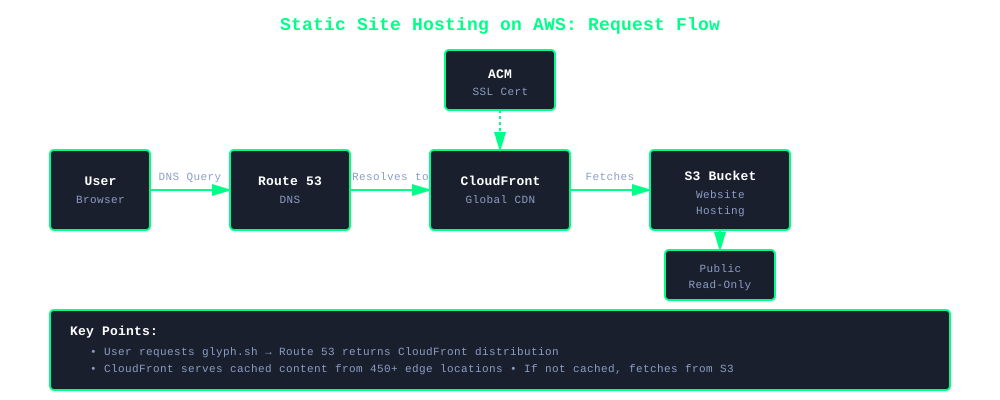
S3 stores the files. CloudFront serves them globally with caching and SSL. Route 53 handles DNS. ACM provides free SSL certificates.
S3: Website Hosting
Enable S3 static website hosting. Bucket is public with read-only access. CloudFront uses the S3 website endpoint.
This is the correct setup for static websites. S3 website hosting was designed for this exact use case.
Why this approach:
- Directory index support -
/tags/msp→/tags/msp/index.htmlautomatically - Custom error pages - 404 handling works natively
- RFC 3986 compliant - Proper URI handling for web content
- Simple configuration - No Lambda@Edge or complex routing needed
- HTTPS via CloudFront - Secure delivery even with public S3 bucket
The bucket is public (read-only), but that’s fine. You’re hosting a public website. The files are meant to be public. CloudFront adds HTTPS, caching, and security headers on top.
CloudFront: Global Distribution
CloudFront sits in front of S3. Visitors hit an edge location near them. Content gets cached at edge locations. Most requests never touch S3.
CloudFront handles HTTPS, custom domains, compression, security headers. Redirect HTTP to HTTPS. Compress automatically. Custom error pages.
Use Response Headers Policy for security - CSP, HSTS, X-Frame-Options. Protects against vulnerabilities without application code.
Route 53 and ACM
Point your domain to CloudFront with alias records. Free query charges. Works for apex domains and subdomains.
ACM provides free SSL with auto-renewal. Request certificate, validate via DNS, attach to CloudFront. Certificate must be in us-east-1.
Step-by-Step Setup Guide
Total time: 1-2 hours Skill level: Intermediate (comfortable with AWS Console and CLI)
Step 1: Create S3 Bucket (10 mins)
- Log into AWS Console → S3
- Create bucket:
your-domain.com - Uncheck “Block all public access” (we need public read for website hosting)
- Enable Static Website Hosting:
- Index document:
index.html - Error document:
404.html
- Index document:
- Add bucket policy for public read access:
{
  "Version": "2012-10-17",
  "Statement": [{
    "Sid": "PublicReadGetObject",
    "Effect": "Allow",
    "Principal": "*",
    "Action": "s3:GetObject",
    "Resource": "arn:aws:s3:::your-domain.com/*"
  }]
}
- Note the S3 website endpoint:
http://your-domain.com.s3-website-us-east-1.amazonaws.com
Step 2: Request SSL Certificate (5 mins)
- AWS Console → Certificate Manager
- Region: us-east-1 (CloudFront requires this)
- Request public certificate for:
your-domain.com*.your-domain.com(wildcard for subdomains)
- Validation method: DNS
- Add CNAME records to your DNS (or Route 53)
- Wait 5-30 mins for validation
Step 3: Create CloudFront Distribution (15 mins)
- AWS Console → CloudFront → Create Distribution
- Origin Domain: Paste your S3 website endpoint (NOT the dropdown S3 bucket)
- Example:
your-domain.com.s3-website-us-east-1.amazonaws.com
- Example:
- Viewer Protocol Policy: Redirect HTTP to HTTPS
- Allowed HTTP Methods: GET, HEAD, OPTIONS
- Cache Policy: CachingOptimized
- Alternate domain names (CNAMEs):
your-domain.com,www.your-domain.com - Custom SSL certificate: Select your ACM certificate
- Default root object:
index.html - Response headers policy: Create custom policy (see security section)
- Create distribution
- Note CloudFront distribution ID and domain name
Step 4: Configure DNS (5 mins)
- AWS Console → Route 53 (or your DNS provider)
- Create A record for apex domain:
- Name:
your-domain.com - Type: A - IPv4 address
- Alias: Yes
- Target: Your CloudFront distribution
- Name:
- Create A record for www:
- Name:
www.your-domain.com - Type: A - IPv4 address
- Alias: Yes
- Target: Your CloudFront distribution
- Name:
Step 5: Upload Your Site (10 mins)
# Build your static site (example: Hugo)
hugo --cleanDestinationDir

# Sync to S3
aws s3 sync ./public s3://your-domain.com/ --delete

# Invalidate CloudFront cache
aws cloudfront create-invalidation \
  --distribution-id YOUR_DIST_ID \
  --paths "/*"
Step 6: Test
- Visit
https://your-domain.com - Check SSL certificate (should show valid)
- Test HTTP → HTTPS redirect
- Check security headers:
curl -I https://your-domain.com - Test from multiple geographic locations
Total setup time: 1-2 hours first time, 15 minutes for subsequent sites
Security
Static sites are more secure. Configuration still matters.
Content Security Policy (CSP) restricts what loads. Configure it in CloudFront Response Headers Policy. Default-deny everything, then explicitly allow trusted sources. Scripts from self and CDNs only. No inline scripts, no eval().
Example CSP configuration:
default-src 'none';
script-src 'self' https://cdnjs.cloudflare.com;
style-src 'self' https://cdnjs.cloudflare.com;
img-src 'self' data:;
font-src 'self' data:;
connect-src 'self';
frame-ancestors 'none';
base-uri 'self';
form-action 'self';
Add HSTS to force HTTPS. X-Content-Type-Options to prevent MIME sniffing. X-Frame-Options to block framing. CloudFront Response Headers Policy handles all of this.
Enable S3 versioning for rollback capability. For public S3 website hosting, bucket policy allows public read access (files are public anyway - it’s a website). Access logging for audit trails.
Deploy Process
I use Hugo. Works with Jekyll, Gatsby, Next.js, 11ty, whatever.
- Build (
hugo --cleanDestinationDir) - Sync to S3 (
aws s3 sync) - Invalidate CloudFront (
aws cloudfront create-invalidation)
Takes 30 seconds. Live globally in minutes. First 1,000 invalidations free monthly.
What It Costs
Real numbers:
- S3 Storage: $0.20/month for 10GB
- S3 Requests: $0.10/month
- CloudFront: $1.00/month for moderate traffic
- Route 53: $0.50/month
- ACM: Free
Total: ~$2/month
WAF adds $5-10/month for bot protection. Overkill for most blogs.
Cost Scaling Warning
These costs are based on a low-traffic content site (~100k requests/month). CloudFront costs scale with bandwidth and request volume. High-traffic sites can cost significantly more. Calculate your expected costs before deploying. See Terms of Service for important disclaimers.
Common Issues & Solutions
Problem: “Access Denied” on S3 bucket
Cause: Bucket policy doesn’t allow public read
Solution:
# Verify bucket policy allows s3:GetObject
aws s3api get-bucket-policy --bucket your-domain.com
Ensure policy includes:
"Action": "s3:GetObject",
"Principal": "*"
Problem: CloudFront serves old cached content
Cause: CloudFront edge caches have 24-hour TTL by default
Solution:
# Invalidate cache
aws cloudfront create-invalidation \
  --distribution-id YOUR_DIST_ID \
  --paths "/*"

# Or for specific files
aws cloudfront create-invalidation \
  --distribution-id YOUR_DIST_ID \
  --paths "/index.html" "/about/index.html"
Problem: Certificate validation stuck
Cause: DNS CNAME records not added correctly
Solution:
- Check ACM console for validation status
- Copy CNAME name and value exactly
- Add to DNS (may take 30 mins to propagate)
- Check DNS:
dig _validation.your-domain.com CNAME
Problem: Subdirectory URLs return 404
Cause: CloudFront origin not using S3 website endpoint
Solution: Ensure origin domain is:
- ✅
your-bucket.s3-website-region.amazonaws.com(S3 website endpoint) - ❌
your-bucket.s3.region.amazonaws.com(S3 REST API endpoint)
S3 website endpoint automatically serves /path/ → /path/index.html
Problem: High CloudFront costs
Cause: Excessive invalidations or high traffic
Solution:
- Use cache-busting filenames for assets:
style.abc123.css - Invalidate only changed files, not
/* - Monitor CloudFront metrics for unusual traffic
- Enable CloudFront access logging to identify issues
When This Doesn’t Work
Need dynamic infrastructure for:
- User-generated content
- Real-time features
- Complex forms
- Personalized content per user
You’ll need application servers and databases. But for blogs, documentation, portfolios? Static wins.
Cloud Reliability Reality
AWS markets 99.999999999% durability. No infrastructure is perfect.
The November 2025 AWS outage reminded everyone. Services down across regions. When your cloud provider has an outage, you’re down. You wait.
That’s the trade-off. You get AWS’s engineering and redundancy. When AWS has a bad day, you have a bad day.
For a content site, makes sense. Outage lasted hours, not days. AWS track record is solid. Multi-cloud redundancy costs exponentially more.
If you have SLA commitments or revenue tied to uptime, multi-region failover makes sense. For a blog? Accept occasional outages.
The cloud is someone else’s computers. They break sometimes.
Why I Use This
I’ve built complex infrastructures. Load balancers, auto-scaling, RDS, microservices. Necessary for the right workloads.
For this site? No maintenance. No patches, no updates, no server management. Security by design. Fast delivery. Pay for usage, not idle compute.
Fast, secure, cheap. Zero time on infrastructure. I write content, not manage servers.
Getting Started
Setup takes an hour or two.
Choose a static site generator. Create S3 bucket with website hosting enabled. Setup CloudFront pointing to S3 website endpoint. Configure Route 53. Add ACM certificate. Security headers. Deployment script.
Then just write and deploy. No patching, no updates, no backups. Infrastructure runs itself.